World Map
The World Map widget extends the in-game world map (M by default) with extra
markers, filters, and shortcuts. It only appears while the world map is open
and is hidden everywhere else.
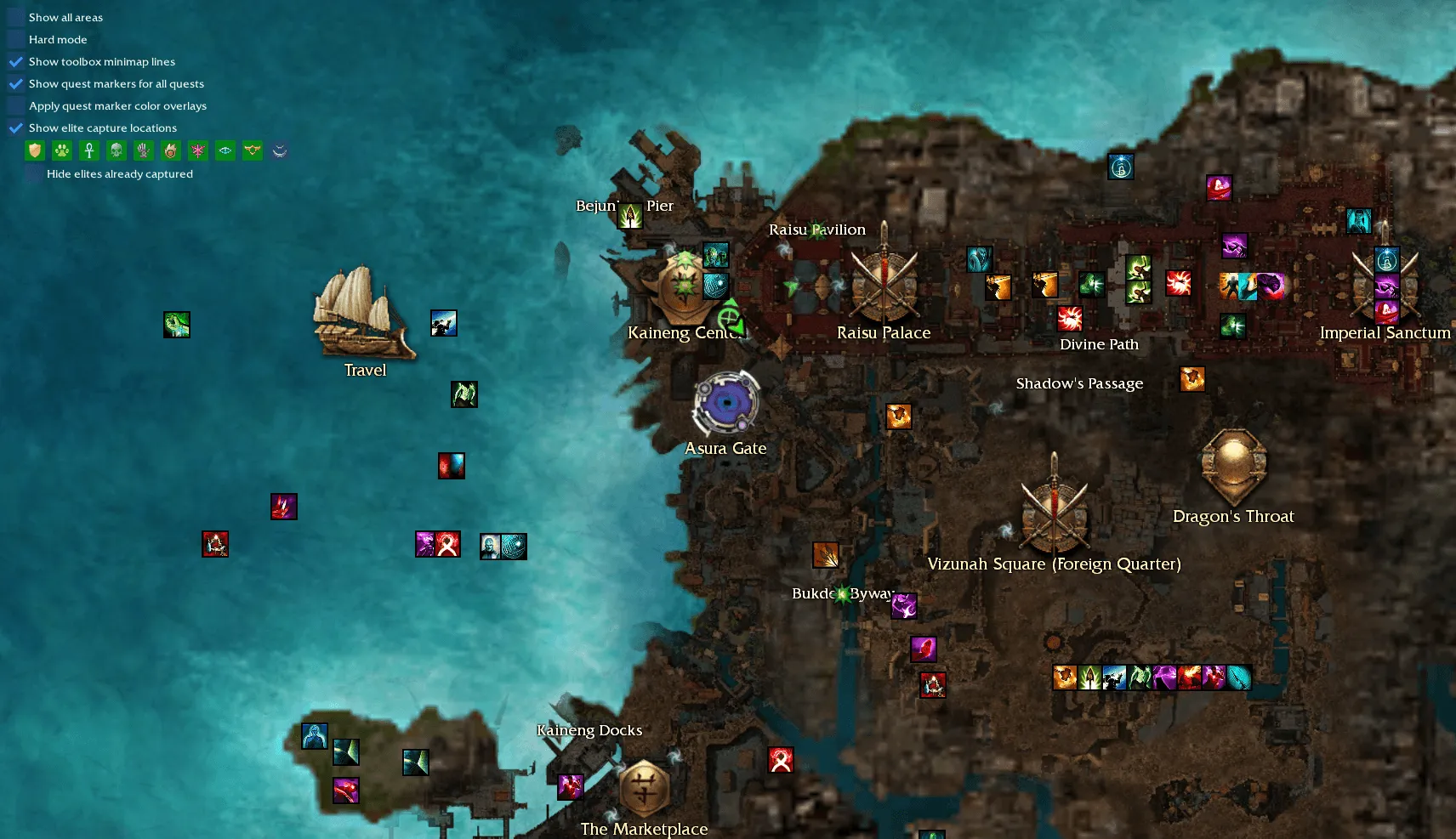
Features Overview
- Show all areas — reveals every outpost on the current continent, even ones you have not unlocked. Useful for picking a travel destination without needing to manually clear fog of war.
- Hard mode toggle — when you are in an outpost, the same checkbox the party window uses to switch difficulty is mirrored here, so you can flip modes without leaving the map.
- Toolbox minimap lines — any custom lines, circles, or polygons you have drawn on the Minimap are projected onto the world map so you can see your run plans in context.
- Quest markers for all quests — by default Guild Wars only shows the marker for your active quest. With this option every quest in your log gets its goal pinned to the world map, decoded and color-coded.
- Quest marker color overlays — tints the region around each quest marker so it stands out at a glance. The active quest and “other” quests use separate colors, both editable from the same controls panel.
- Elite capture locations — overlays every boss that drops an elite skill, filtered by the profession buttons. Right-click a boss to travel to its nearest outpost or jump straight to the boss/skill wiki page. If the Completion Window is enabled, elites you’ve already captured on the current character can be hidden.
Right-click context menus
The widget hooks the world map’s right-click menu and adds extra entries:
- Anywhere on the map — drops a custom quest marker at the clicked point (handy as a personal waypoint when planning a run).
- On a quest marker — Set active quest, Travel to nearest outpost, open the quest on the Guild Wars wiki.
- On an elite boss marker — Travel to nearest outpost, open the boss page on the wiki, open the elite skill page on the wiki.
Quest markers also show a tooltip on hover that includes the Zaishen coin reward (normal-mode and hard-mode) for that quest, when applicable.
Settings
There are no settings under the regular GWToolbox settings panel — the controls are baked into the widget itself, so you only see them when the world map is actually open. Your selections are saved between sessions.