Minimap
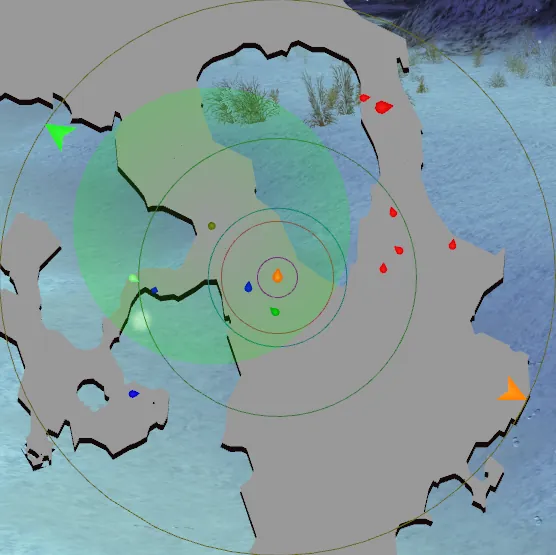
Minimap-specific settings live under Settings Minimap . Marker and name tag appearance is configured under Game Settings → Agent Appearance, even when the Minimap widget is disabled.
These minimap layers can also be overlaid on the in-game mission map — see Mission Map.
The Minimap widget is an advanced version of the Guild Wars compass. It shows the full party-range area with an accurate pathing map, replaces agent dots with shaped/coloured markers, draws range circles, custom markers, AoE-spell footprints, and quest goals, exposes a click-through targeting and movement layer, and (optionally) projects custom markers into the 3D game world.
Features Overview
- The minimap shows everything within party range (5000 gwinches) — about 10% further than the default compass. Agents inside that range can be targeted via
Ctrl+Click(default — see Hold + Click modifiers). - Unlike the default compass, the minimap turns immediately as you look around (with optional smoothing).
- Background is an accurate pathing map showing where agents can actually move.
- Party range, spirit range, cast range, aggro range and any custom range circles you add — all drawn accurately. Special circles (HoS, chain aggro, res aggro, shadow step) appear automatically when relevant skills/targets are active.
- All 7 heroes can be individually flagged from the minimap, including flagging on the ground in the open world.
- AoE spell footprints for enemy casters (Maelstrom, Chaos Storm, traps, etc.) are drawn on the map.
- Custom lines, circles, and polygons can be drawn on the minimap and optionally projected onto the 3D terrain in-world.
/marktargetlets you keep specific agents highlighted on the minimap.
Agents
- Edge of Extinction, Quickening Zephyr, Winnowing, Frozen Soil, and Symbiosis areas of effect are visible on the minimap.
- Agents that can move or turn have a teardrop shape with the point indicating facing. Static agents (passive spirits, etc.) are circles. Signposts and items on the ground are squares.
- Bosses can be drawn at a different size, and (optionally) tinted by primary profession.
- You can override the colour, text colour, size and shape of any specific agent by model id — optionally restricted to a particular map and/or combat / weapon state.
Configuring the minimap
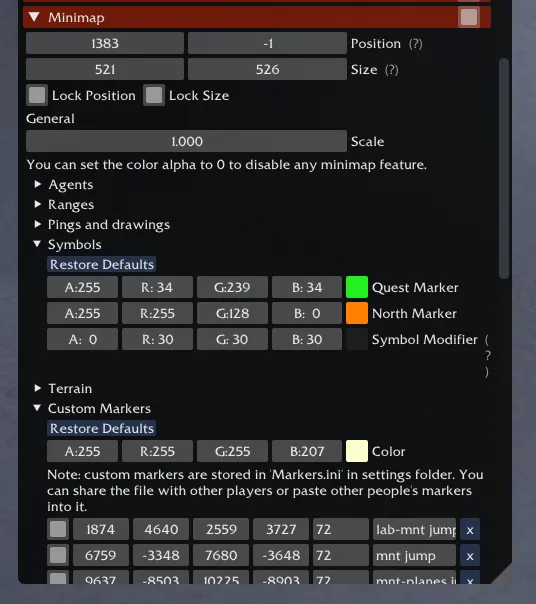
The minimap-specific settings below live under Settings Minimap . For agent colours, sizes, shapes and name tags, see Game Settings → Agent Appearance. Most colour pickers accept alpha — set alpha to 0 to disable a feature entirely.
General
- Scale Settings Minimap Scale — Zoom level. Range 0.1–10.0. Also adjustable in-game with
Shift+mousewheel. - Size Settings Minimap Size — Minimap edge size in pixels. Hidden when Snap to GW compass is on (the minimap is then sized from the in-game compass).
Shift+dragto pan the minimap to look at other areas. In-game movement snaps the view back onto you. Panned views still cannot show anything beyond party range. (The drag modifier is configurable — see Hold + Click modifiers.)
Compass integration
- Snap to GW compass Settings Minimap Snap to GW compass — Resize and position the minimap to match the in-game compass.
- Hide GW compass agents Settings Minimap Hide GW compass agents — Hide the agent dots on the underlying GW compass so the minimap doesn’t have to fight them for visual clarity.
- Hide GW compass quest marker Settings Minimap Hide GW compass quest marker — Hide the GW quest star. To suppress the toolbox quest marker as well, set its colour to fully transparent under Symbols.
- Draw all quest markers Settings Minimap Draw all quest markers — Draw the goal of every quest in your log, not just the active quest.
- Hide GW compass drawings Settings Minimap Hide GW compass drawings — Hide drawings on the GW compass. Drawings from other players still show on the minimap.
- Hide GW compass when minimap is visible Settings Minimap Hide GW compass when minimap is visible — Hide the entire in-game compass while the minimap is up.
- Hide GW compass flagging controls Settings Minimap Hide GW compass flagging controls — Hide the in-game hero-flag buttons. Takes effect on map change. PvP areas are unaffected.
Agents
Settings Minimap still has Show hidden NPCs and Show symbol for quest NPCs. The marker styles used for those agents now live in Game Settings → Agent Appearance.
Ranges
Under Settings Minimap Ranges . Reference radii in gwinches: aggro 1012, cast 1248, spirit 2512, extended 3500, compass 5000.
Ranges are now a fully editable list rather than a fixed set of circles. Each row has:
- Visible toggle, free-text Label, Radius (1–10000 gwinches), Origin (
PlayerorTarget), Thickness in pixels, Color, and Move Up / Move Down / Delete controls. - Add Circle Settings Minimap Ranges Add Circle — append a new circle to the list.
Special Range Circles
A separate sub-panel for the conditional ranges that aren’t user-configurable, beyond their colour:
- HoS range — shown when you have Heart of Shadow / Viper’s Defense, with a line away from your target showing where you would land.
- Chain Aggro range (enemy target) — aggro radius around your current enemy target.
- Res Aggro range (dead ally target) — aggro radius around a dead ally you’re considering resurrecting.
- Shadow Step range — Recall range; the Shadow Step Line (in Pings and drawings) fades from one colour to another as you approach this limit.
Pings and drawings
Under Settings Minimap Pings and drawings .
- Drawings — lines drawn by you and party members.
- Pings — single-click pings.
- Shadow Step Marker — the dot at your origin when you cast Shadow of Haste / Shadow Walk / Aura of Displacement / Shadow Meld.
- Shadow Step Line — the connecting line from you to that marker (so you can see if terrain blocks the return).
- Shadow Step Line (Max range) — the colour the line interpolates toward as you approach Recall range.
- Max range start / Max range end — fraction of Recall range (0.0–1.0) where the line starts changing colour and where it reaches the max-range colour.
AoE Effects
Under Settings Minimap AoE Effects . A colour per spell footprint that the minimap will trace when an enemy casts it:
Chaos Storm, Maelstrom, Savannah Heat, Breath of Fire, Lava font, Churning Earth, Barbed Trap, Flame Trap, Spike Trap.
Symbols
Under Settings Minimap Symbols .
- Active quest marker — the star for your current active quest (becomes an arrow on the compass edge if the goal is out of range).
- Quest line color — the line drawn from you toward the quest goal.
- Other quest markers — colour used for non-active quests when Draw all quest markers is enabled. If this colour’s alpha is
0, inactive markers are given random colours instead. - North marker — arrow on the northernmost point of the compass.
- Symbol modifier — same shading effect as Agent modifier, but applied to symbols.
Cardinal directions
- Color — colour of the
N/S/E/Wlabels on the compass edge. - Offset — game-unit offset from the compass edge (positive = outward, negative = inward). Range −1000 to 1000 gwinches.
- Font size — 16–56 px.
Terrain
Under Settings Minimap Terrain .
- Map — the area agents can move within.
- Shadow — same shape as Map, offset slightly to fake thickness.
- Background — the area behind the map.
- Restore Defaults — reset all three colours.
Custom Drawings
Custom drawings let you annotate the minimap (and, optionally, the 3D world) with lines, circles, and polygons. Stored in Markers.ini in your settings folder, which is safe to share or merge from other players.
Custom Lines
Under Settings Minimap Custom Drawings Custom Lines .
A global Color picker at the top of the sub-panel sets the default for newly-added rows. Each row:
- Visible toggle, X1 / Y1 / X2 / Y2 endpoints, per-line Color, Map ID (
0= all maps), free-text Name. - Draw on in-game terrain — render this line in the 3D world too (see In-game rendering).
- Move Up / Move Down / Delete.
- Add Line — append a new row.
Use the Info window to read off coordinates and the current Map ID.
Custom Circles (Markers)
Under Settings Minimap Custom Drawings Custom Circles .
- Visible toggle, X / Y center, Size (radius), Type (
Circleoutline orFillCircle), per-marker Color, Map ID, Name. - A secondary colour overrides the rendering of hostile agents inside the marker — useful for highlighting pull spots or kill boxes. Alpha 0 disables this overlay.
- Draw on in-game terrain — project the circle onto the 3D world.
- Move Up / Move Down / Delete.
- Add Marker — append a new row.
Custom Polygons
Under Settings Minimap Custom Drawings Custom Polygons .
Polygons need at least 3 points. Each row:
- Visible toggle, Show Points (N) to expand the per-point editor, Filled toggle (filled rendering is limited to a maximum number of points; outline-only above that), Color of the polygon outline / fill, hostile-agent-inside overlay colour (alpha 0 disables), Map ID, Name.
- Draw on in-game terrain — project the polygon onto the 3D world.
- When expanded: each point exposes an
X, Yfield and a delete button. Add Polygon Point appends a point. - Move Up / Move Down / Delete at the polygon level.
- Add Polygon — append a new polygon.
Hero flagging
Under Settings Minimap Hero flagging .
- Show hero flag controls Settings Minimap Hero flagging Show hero flag controls — Show the row of
All / 1 / 2 / 3 / … / 7 / 8 / Clearflag buttons next to the minimap. - Attach to minimap Settings Minimap Hero flagging Attach to minimap — Pin the buttons to the minimap. Disable to make the row a free-standing window — move/resize it via Unlock Move All at the top of the Settings window.
- Background — background colour of the flag-controls row.
Hero flag buttons only appear in explorable areas while you have heroes in your party.
In-game rendering
Under Settings Minimap In-game rendering . Beta — these settings drive the per-marker Draw on in-game terrain toggle. The renderer draws over your character, world props, and UI elements, so treat it as an overlay.
- Maximum render distance — game-units. Markers beyond this distance from your camera are skipped. Range 0–10000.
- Interpolation granularity — Number of interpolation points along curved segments. Higher is smoother but costlier. Range 0–100.
- Fog factor — 0.0 disables fog; 1.0 is maximum.
Bosses and other agent behaviour
These settings sit at the bottom of the settings panel rather than inside a named header.
- Profession-coloured hostile markers are seeded as rules under Game Settings → Agent Appearance. Their Boss state determines whether they affect only bosses or all enemies of that profession.
- Show hidden NPCs Settings Minimap Show hidden NPCs — Show NPCs that aren’t normally on the compass (minipets, invisible NPCs, etc.).
- Show symbol for quest NPCs Settings Minimap Show symbol for quest NPCs — Draw a star next to NPCs that have quest progress available.
Allow mouse click-through
Pass the mouse through the minimap to the game underneath, separately for:
- Explorable areas Settings Minimap Explorable areas
- Outposts Settings Minimap Outposts
Hold + Click modifiers
Pick which modifier key gates each click-on-minimap behaviour. Each setting is a combo of None / Ctrl / Shift / Alt (or combinations):
- Draw Settings Minimap Draw: — Ping and draw on the compass.
- Target Settings Minimap Target: — Click an agent on the minimap to target it.
- Drag Settings Minimap Drag: — Pan the minimap view outside party range.
- MoveTo Settings Minimap MoveTo: — Start walking your character to the clicked spot.
Rotation and shape
- Reduce agent ping spam Settings Minimap Reduce agent ping spam — Repeated pings on the same agent extend the duration of the existing ping rather than stacking new ones.
- Map Rotation Settings Minimap Map Rotation — On = rotate with the camera (like the compass). Off = stays north-up (like the mission map).
- Flip when reversed Settings Minimap Flip when reversed — Flip 180° when you reverse-camera.
- Map rotation smoothing Settings Minimap Map rotation smoothing — Match the rotation speed of the in-game compass instead of snapping.
- Circular Settings Minimap Circular — Circle (default) vs. square minimap shape.
Chat Commands
Hero flagging:
- /flag or /flag all — Flag all heroes to your current position.
- /flag all x y — Flag all heroes to the given coordinates.
- /flag <1-8> — Flag the numbered hero to your current position.
- /flag <1-8> x y — Flag the numbered hero to coordinates.
- /flag <1-8> clear — Unflag the numbered hero.
- /flag <1-8> toggle — Toggle the numbered hero’s flag.
- /flag clear — Unflag all heroes.
Target marking (uses the Marked Target rule under Game Settings → Agent Appearance):
- /marktarget — Mark your current target so it stays highlighted on the minimap.
- /marktarget clear or /marktarget remove — Unmark the current target.
- /marktarget clearall or /clearmarktarget — Clear every marked target.