Pcons
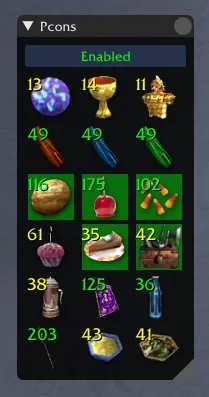
The Pcons window can maintain your choice of cons and pcons, provided you have them in your inventory.
Each pcon will pop whenever you are alive and do not have the pcon’s effect. Note that whilst most pcons’ effects expire on death, and will re-pop immediately on resurrection, some (such as war supplies and alcohol) persist and do not need to be popped again.
City Speedboost
City speedboosts, represented by the Sugary Blue Drink icon, will pop as soon as you move in an outpost.
Only the ones in your inventory (not your storage) will be used.
Consets
Your Essence of Celerity, Grail of Might, and Armor of Salvation will only pop when the entire party has loaded into the area.
If any players are dead, cons will not pop. A player leaving the party or losing communication with the server will not prevent cons from popping.
Res Scrolls and Powerstones
Scrolls of Resurrection and Powerstones of Courage are not auto-popped. Selecting these just allows Toolbox to automatically refill them from storage.
Settings
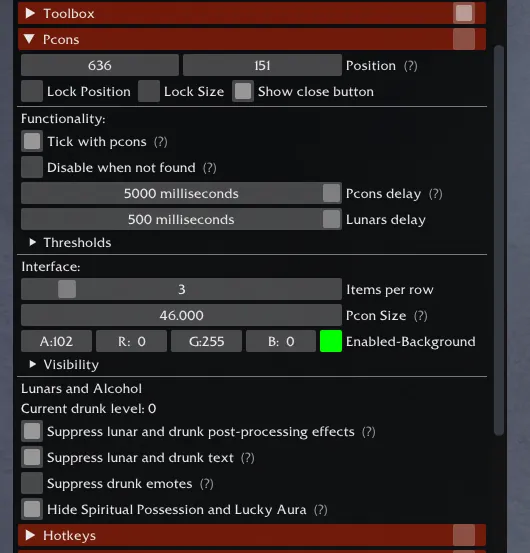
All Pcons options live under Settings Pcons , grouped into the sub-sections below.
-
Functionality Settings Pcons Functionality:
- Toggle Pcons per character — remember which pcons you choose for each character. With this unticked, your selection of pcons will be used for all characters.
- Tick with pcons — automatically ticks/unticks your “Ready” check on the party window when you turn pcons on or off. Ticking and unticking will not affect pcons.
- Disable when not found — turns off a pcon if you have none in your inventory.
- Refill from storage — tops up your selected pcons to the level specified in thresholds. This only works when pcons are enabled.
- Show storage quantity in outpost — displays a number on the bottom of each pcon icon, showing the total quantity in storage. This only displays when in an outpost.
- Pcons delay — how long Toolbox waits between re-popping pcons. If this is lower than your ping, multiple sets of pcons will pop each time.
- Lunars delay — how long Toolbox waits between popping Lunar Fortunes.
-
Thresholds
Choose the “threshold” for each pcon. When you have less than this amount:- The number in the interface becomes yellow.
- Warning message is displayed when zoning into outpost.
-
Interface Settings Pcons Interface:
- Items per row — number of icons per row of the Pcons window.
- Pcon size — icon size. 32.000 matches inventory icons on a Small interface.
- Enabled-Background colour for highlighted (active) pcons.
-
Visibility
Select which pcons you want to appear on the Pcons window. -
Lunars and Alcohol Settings Pcons Lunars and Alcohol
- Current drunk level shows how many minutes until you are no longer drunk. If alcohol is selected to auto-pop, you will drink more before the counter reaches 0.
- Suppress lunar and drunk post-processing effects prevents the screen from going blurry from lunar or drunk effects. If you turn this on after the effect activates, it will actually prevent it from turning off.
- Suppress lunar and drunk text hides the random speech bubbles that appear above characters when they’re drunk or under the effects of Spiritual Possession.
- Suppress air of superiority text hides the speech bubble shown above characters affected by Air of Superiority (from a Birthday Cupcake).
- Suppress drunk emotes prevents your character from randomly performing emotes at high levels of drunkenness. There is a chance that this will cause your game to crash, and it’s recommended to just use level 1 alcohol instead.
- Hide Spiritual Possession and Lucky Aura hides these 2 effects on your effects monitor.
-
Auto-Disabling Pcons Settings Pcons Auto-Disabling Pcons
- Auto Disable on Vanquish completion — disables pcons when a vanquish is completed.
- Auto Disable in final room of Urgoz/Deep — disables pcons when reaching Urgoz or Kanaxai.
- Auto Disable on final objective completion — disables pcons when defeating Dhuum or completing all 11 quests in FoW.
- Disable on map change — disables pcons when leaving an explorable area.