Hotkeys
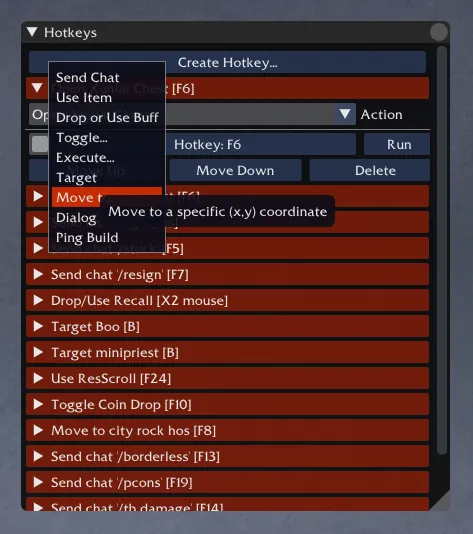
Open the Hotkeys window from Toolbox Hotkeys or with /show hotkeys . Per-window options live under Settings Hotkeys .
The Hotkeys window offers a large selection of Toolbox functions that can be mapped to a key on your keyboard or mouse, so that when you press the key, you will perform that action.
Click “Create Hotkey…” and select the type of hotkey you want to create. A new row will appear in the list of hotkeys, and you can now edit this hotkey.
The unmarked toggle switches the hotkey on or off: if it’s off, pressing your hotkey will do nothing, but you can still activate it by clicking the “Run” button.
“Display message when triggered” prints a message in the Emotes channel whenever the hotkey is successfully activated.
“Block key in Guild Wars when triggered” prevents the hotkey from performing its usual Guild Wars function. For example, if the hotkey is R, successfully activating the hotkey will not cause your character to autorun.
“Trigger hotkey when entering explorable area” and “Trigger hotkey when entering outpost” cause the hotkey to activate every time you enter an instanced area or outpost/town/Guild Hall, respectively.
“Trigger hotkey when Guild Wars loses focus” and “Trigger hotkey when Guild Wars gains focus” allow the hotkey to activate when you switch away from or back to the Guild Wars window.
You can specify which maps, professions, and instance types the hotkey will work for. You can also set a character name for the hotkey to only work on a specific character.
The “Hotkey:” button allows you to choose a new key to bind to this function.
“Move Up” and “Move Down” adjust the hotkey’s position in the list of hotkeys.
“Delete” deletes the hotkey from the list.
The other controls are for setting up the parameters of the hotkey, and are of course different for each type of hotkey, as described below:
Send Chat
Select a channel to send the message to, and type your message. You can use Guild Wars commands (such as /resign or /stuck), as well as Toolbox commands (such as /pcons or /cam unlock).
Use Item
Specify the item’s Model ID 1 and optionally a name to help you remember what the item is. This works for consumable items, including those in your Xunlai storage when you’re in an outpost.
Drop or Use Buff
This has a dual function: if you are currently maintaining the selected enchantment, you will dismiss it. Otherwise, you will cast it on the target. You can choose from Recall, Unyielding Aura, Holy Veil, or specify a custom skill ID 1.
Toggle…
This activates and de-activates one of four features:
- Clicker makes the left mouse button click rapidly.
- Pcons toggles auto pcons on or off.
- Coin Drop drops a gold coin on the floor periodically.
- Tick toggles the Ready tick in the party window.
Execute…
This triggers one of several features:
- Open Xunlai Chest opens your storage from anywhere in an outpost.
- Open Locked Chest automatically uses a lockpick to open a targeted chest.
- Drop Gold Coin drops a single gold coin on the ground.
- Reapply appropriate title changes your title based on the current area.
- Enter Challenge activates the Enter Mission button in certain outposts.
Target
This automatically targets a particular pre-specified NPC, signpost, or item based on its ID1.
Move to
This will move your character to a pre-specified point on the map. You can set the coordinates and specify a range within which the hotkey will work.
Dialog
This sends a specific dialog ID, useful for interacting with NPCs or accepting quests automatically.
Ping Build
Select a teambuild from your saved builds. Using the hotkey will send it to party chat.
Load Hero Team Build
Select a hero team build from your saved builds. Using the hotkey will load the team.
Equip Item
This allows you to equip a specific item, either by its attributes or by its position in your inventory.
Flag Hero
This allows you to set a flag for a specific hero or all heroes at a certain angle and distance from your character.
- Degree — the angle of the flag, in degrees (-360 to 360), measured from the reference direction described below.
180is directly behind that direction. - Distance — how far from your character the flag is placed, in game units (0 to 10000). For reference, aggro (danger) range is roughly 1250 units and spellcasting range roughly 1010.
- Hero — which hero to flag (1-11, in party order). Use
0to flag the whole party.
The flag is always placed relative to your position; only the direction the angle is measured from changes:
- No target selected — the angle is measured from the direction your character is facing, so the formation rotates with you.
- A target selected — the angle is measured from the line between you and your target, so the formation stays oriented on the target as you move around it.
Degree = 0therefore puts the hero directly between you and your target at the given distance.
Pressing the hotkey again while that hero (or the party, for 0) is already flagged clears the flag instead, so a single key toggles the position on and off.
Building a formation is just a handful of these hotkeys — e.g. one per hero at the same distance with degrees spread out (120 / 180 / 240 for a three-hero backline), plus a Hero = 0 hotkey to unflag everything. See also the minimap’s hero flagging controls and the /flag chat commands.
Guild Wars Key
This allows you to bind a hotkey to trigger a specific Guild Wars control action.
Command Pet
This allows you to set your pet’s behavior (Fight, Guard, or Avoid Combat) with a hotkey.