Market Browser
Open from Toolbox Market Browser or /show marketbrowser . Per-window options live under Settings Market Browser .
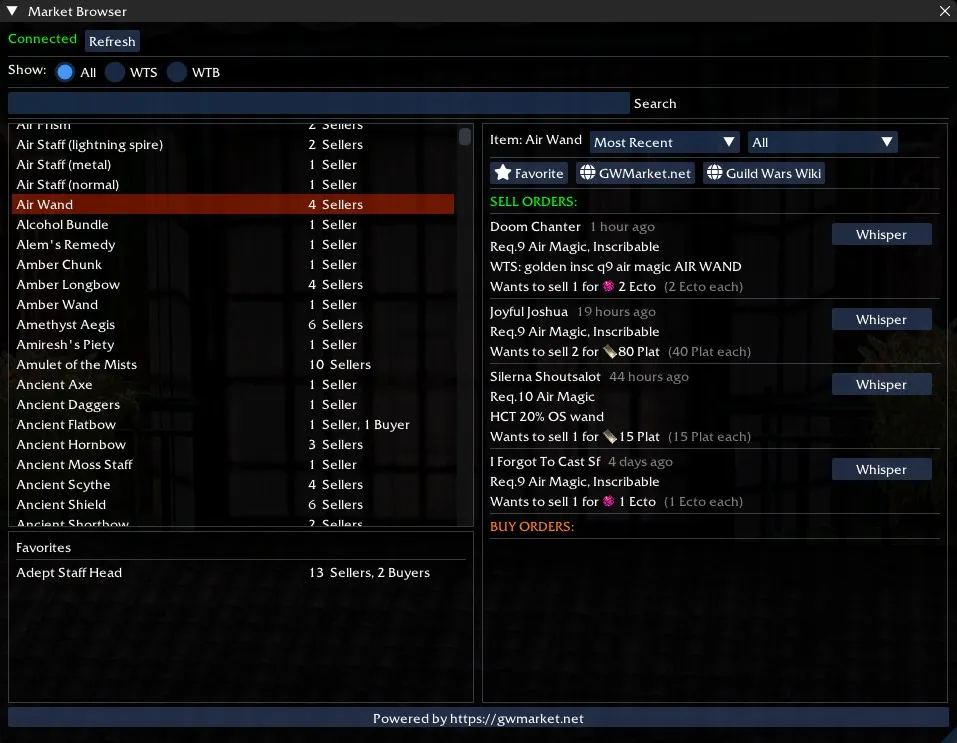
The Market Browser is a docked window that streams live buy/sell listings from gwmarket.net over a websocket connection, so you can search for items, compare prices across currencies, and whisper sellers without alt-tabbing out of Guild Wars.
It’s a read-only view of the gwmarket.net order book today — posting your own orders happens on the website (the in-game “My Shop” panel exists in source but is gated behind a build flag).
Header
A status row at the top of the window shows the connection state:
- Connected (green) — receiving live updates.
- Connecting… (yellow) — handshake in progress.
- Disconnected (red) — websocket dropped; click Refresh to try again.
Three radio buttons filter the item list by order direction:
- All — show every item with active orders.
- WTS — show only items with active sell orders (Want to Sell).
- WTB — show only items with active buy orders (Want to Buy).
A Search box just below the filters narrows the item list by name. Matching is substring-based, case-insensitive.
Layout
The body is split into three panes:
- Item list (top-left) — every item with active listings, with badges showing how many buyers and sellers are quoting it. Click an item to load its order book in the details pane.
- Favorites (bottom-left) — items you’ve starred. Persisted to
GWToolbox.iniunder[Market Browser]so they survive restarts. - Item details (right) — the order book for whichever item you’ve selected.
A small footer button reads “Powered by gwmarket.net” — clicking it opens the site in your browser via the Toolbox URL handler.
Item details pane
When you click an item, the right pane fills with:
- A header showing the item name plus two dropdowns:
- Sort mode — Most Recent (newest orders first) or Currency (cheapest first).
- View currency — show All currencies, or filter to one of Plat, Ecto, Zkeys, Arms.
- A ★ Favorite / Unfavorite button to toggle the item in your Favorites pane.
- A gwmarket.net button to open the item’s page in the website.
- A Guild Wars Wiki button to open the item’s wiki page.
- Two grouped lists below: SELL ORDERS (green) and BUY ORDERS (orange). Each row shows the seller name, when it was posted, the quoted quantity, the asking price, the per-unit price and a Whisper button that opens an in-game whisper pre-filled with that player’s name. If you then send a whisper to that player within 60 seconds, anonymous purchase data is sent to gwmarket.net (see Anonymous Analytics).
Settings
The window has its own settings panel (open from Settings → Market Browser):
- Auto-refresh — when on, polls the market every N seconds.
- Interval (sec) — slider, 30 to 300 seconds. Only shown when Auto-refresh is enabled.
- Refresh — manual one-shot refresh; only enabled while the websocket is connected.
Tips
- The browser only shows active orders. If a listing’s TTL has expired on the gwmarket side, it disappears from the in-game view automatically.
- Currencies are converted by gwmarket — when the Currency sort is selected, items priced in different currencies are sorted within their currency bucket, not against each other.
- Your favourites list is stored under your Toolbox configuration, not on gwmarket.net, so it’s per-installation rather than per-account.