Texture Mods (gMod)
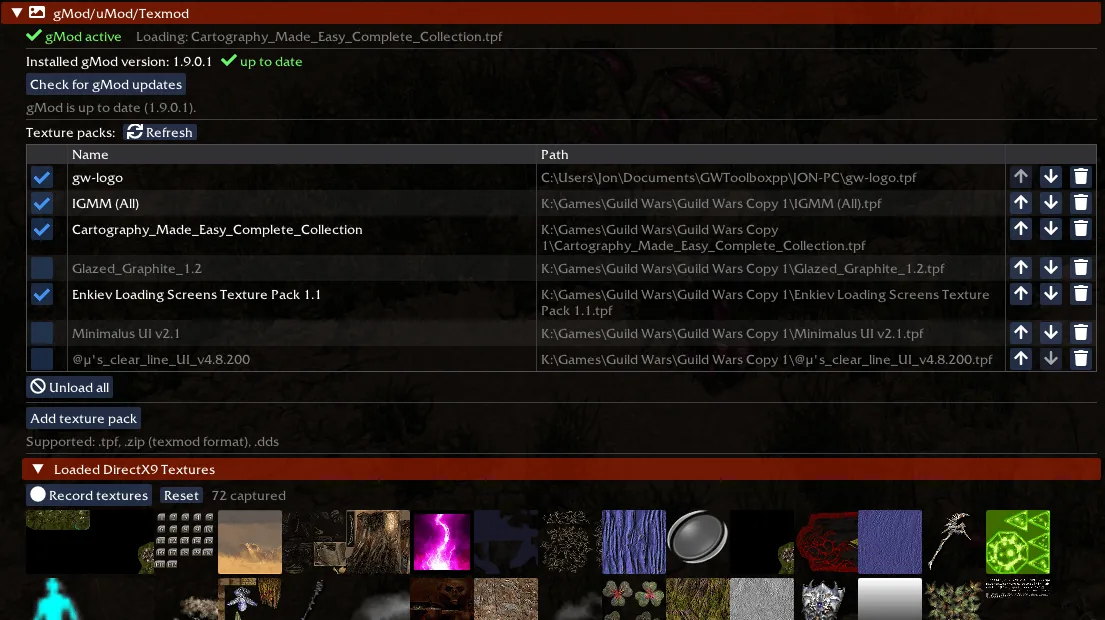
Toolbox can load texture replacement packs at runtime using a built-in gMod, so you no longer need to run TexMod or uMod as a separate program. Find it under Settings gMod/uMod/Texmod .
gMod itself is downloaded and kept up to date automatically into your Toolbox folder — there’s nothing to install. The status line shows whether gMod is active, and the version row offers a manual Check for gMod updates if you want to force a re-check.
Adding packs
Click Add texture pack and pick a file. Supported formats:
.tpfand.zip— TexMod / uMod packs.dds— a single replacement texture
Each pack appears as a row with a checkbox. Tick it to load the pack, untick to unload. Use the trash button to remove a pack from the list entirely, or Unload all to disable everything at once. Your packs and their enabled state are remembered between sessions.
Load order
When two packs replace the same texture, the one higher in the list wins. Use the up/down arrows on each row to change a pack’s priority — moving a pack up gives it precedence over the packs below it on any conflicting textures. Packs that don’t overlap are all applied regardless of order.
When changes take effect
gMod swaps textures as the game loads them. Textures already in memory for the area you’re standing in are not re-evaluated immediately, so a pack you load (or reorder) after entering a map may not visibly apply until the next map change. Zoning into another area — or relogging — forces the game to reload its textures and your changes show up.
Extracting textures
Expand Loaded DirectX9 Textures to capture the textures the game is currently using, so you can build your own replacements. Click Record textures to start collecting them as you play (this hashes every texture the game creates and will lower your framerate while active, so stop it when you’re done). Click any captured texture to download it as .dds (for use in a gMod/uMod/TexMod pack) or .png. The hash shown is the gMod/uMod/TexMod texture hash you’ll target in a pack.
Notes
- Running the standalone TexMod or uMod programs alongside Toolbox can conflict — prefer the built-in gMod instead (see the FAQ).
- If the status line shows gMod isn’t active, make sure you have at least one pack added; gMod only loads once there’s something to serve.