Account Inventory
Open from Toolbox Account Inventory or /show Account Inventory . Per-window options live under Settings Account Inventory .
The Account Inventory window shows a single combined view of every item you own — across all of your characters, their heroes, and your Xunlai chest — and remembers what it has seen so the items stay visible even when you are logged in on a different character. If you have several Guild Wars accounts registered with Toolbox, items from those accounts are shown too, marked as foreign so you can tell them apart.
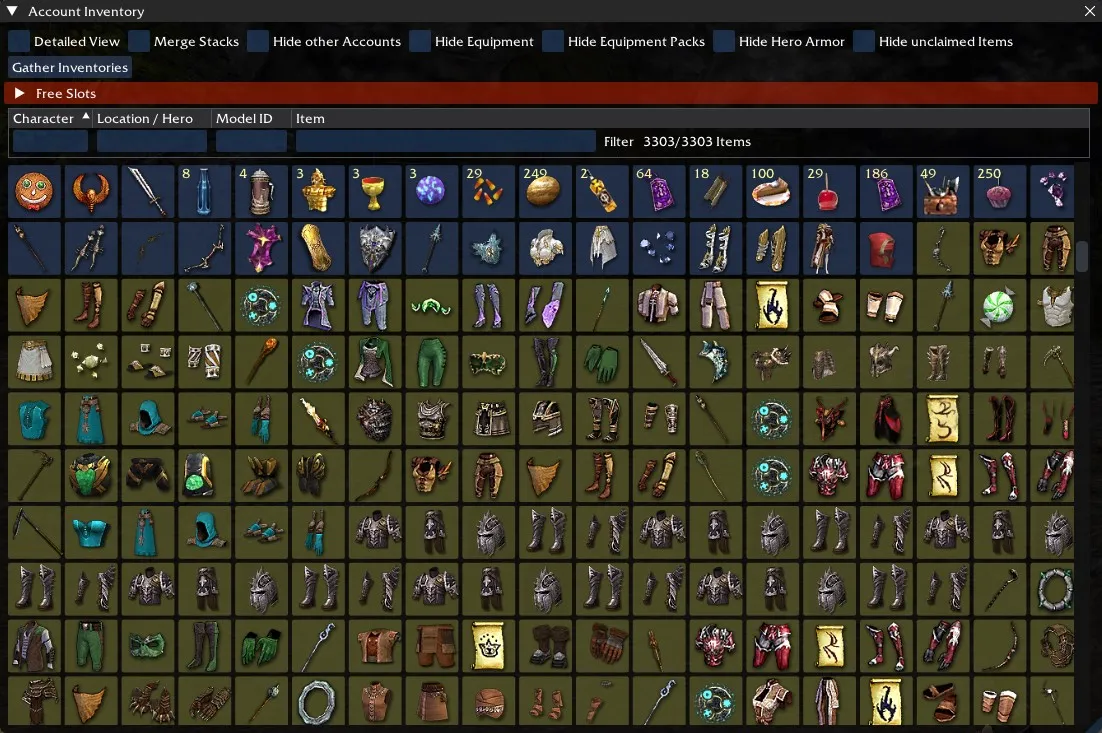
Header toolbar
The row of checkboxes along the top of the window controls how the items list is filtered and rendered. The same toggles are mirrored under Settings Account Inventory .
- Detailed View Account Inventory Detailed View — Switch between the compact icon grid (default) and a sortable table with
Character,Location / Hero,Model IDandItemcolumns. - Merge Stacks Account Inventory Merge Stacks — Combine multiple matching items into a single row, including normally non-stackable items. Hovering shows where each piece of the stack lives.
- Hide other Accounts Account Inventory Hide other Accounts — Hide items that belong to other GW accounts registered with Toolbox.
- Hide Equipment Account Inventory Hide Equipment — Hide items in the Equipped Items bag and any weapon-set entry currently marked equipped.
- Hide Equipment Packs Account Inventory Hide Equipment Packs — Hide everything inside the Equipment Pack bag.
- Hide Hero Armor Account Inventory Hide Hero Armor — Hide armor pieces worn by heroes (slots 2+ of a hero’s equipped bag).
- Hide unclaimed Items Account Inventory Hide unclaimed Items — Hide the contents of the Unclaimed Items bag.
- Gather Inventories Account Inventory Gather Inventories — Walk through every character on the active account and every unlocked hero to refresh the saved inventory data. See Gather Inventories below.
Free Slots
The collapsible Free Slots header expands into a sortable table showing how many inventory and equipment slots are free on each character and chest that Toolbox has seen, in the form free/total. Click a column header to sort; click again to flip the direction; hold Shift to sort by multiple columns.
Clicking the character name of an entry on the active account is a shortcut:
- On a player row — reroll to that character.
- On the
(Chest)row — reroll/open the Xunlai chest on the active character at the first storage pane.
Entries from other accounts are shown greyed out. Chest rows from foreign accounts include the alphabetically-first character name on that account in square brackets ((Chest) [SomeName]) so you can distinguish multiple foreign chests without showing account email addresses.
The anniversary storage pane (Storage 14) is only counted toward the chest’s max once Toolbox has seen at least one item in it.
Items list
Below the toolbar sits the items list. The first row under the column headers is a per-column filter:
- Character filter — Substring match against the character name. Case-insensitive if your query is all lowercase.
- Location / Hero filter — Substring match against the bag/hero label (e.g.
Storage 3,Equipped Items,Olias). Case-insensitive if all lowercase. - Model ID filter — Exact match against the item’s model id.
- Item filter — Substring match against the decoded item description. Case-insensitive if all lowercase.
To the right of the item filter, Filter <shown>/<total> Items shows how many items pass the current filter out of the total tracked.
The columns are also sort keys — click a header to sort by Character, Location / Hero, Model ID or Item; hold Shift to add secondary sort columns.
Item colors
Each item button is tinted to tell you at a glance where it lives:
- Default — A normal inventory item on the active account.
- Green-tinted — Stored in the Xunlai chest (any storage pane) or material storage.
- Yellow / orange-tinted — Equipped on a hero.
- Desaturated — Belongs to another GW account registered with Toolbox.
The yellow number in the top-left of an icon (icon grid view) is the stack size.
Clicking an item
Clicking an item is a “go to it” shortcut:
- Click — Reroll to the character that owns the item. If the item lives on a hero, that hero is added to the party. If the item is in the chest, Toolbox opens the Xunlai window and switches to the correct storage pane.
- Ctrl+Click — Same jump as above, plus automatically move the item between your inventory and the chest using the same logic as the Inventory Manager. Hero armor cannot be moved this way and is treated as a plain click. Items on other accounts cannot be moved either.
While a reroll/load is in progress, an Account Inventory loading in progress dialog appears with an Abort! button if you need to cancel.
Hovering an item shows a tooltip that lists each character/location the item is found on with per-location totals, plus the full item description. Items from foreign accounts are dimmed in the tooltip.
Gather Inventories
By default, Toolbox only sees items on the character you are currently playing (plus your active heroes and chest). To populate the window with everything on the account, use Gather Inventories:
- Available both in the window’s toolbar and under Settings Account Inventory Gather Inventories .
- Triggers a confirmation dialog before starting, because it will use the Reroll feature to cycle through every PvE character on the account and read each one’s inventory.
- On each character it kicks the party, adds every unlocked hero in batches of up to
max party size - 1(capped at 7), waits for the hero’s inventory to load, and records what is in their equipped bag. - When finished it rerolls back to the character you started on and restores the heroes you had in your party.
- The whole pass can take several minutes if you have many characters/heroes. The progress dialog has an Abort! button.
The gather pass is skipped for PvP characters and for characters currently stuck on a map where Toolbox disables itself.
Settings page
Under Settings Account Inventory :
- All seven toggles from the header toolbar (
Detailed View,Merge Stacks,Hide other Accounts,Hide Equipment,Hide Equipment Packs,Hide Hero Armor,Hide unclaimed Items) with short descriptions next to each. - Gather Inventories Settings Account Inventory Gather Inventories — Same action as the in-window button.
- Delete Account Inventory Settings Account Inventory Delete Account Inventory — Wipe the saved inventory data for the active account only and remove its
.inifiles from disk. - Delete All Inventories Settings Account Inventory Delete All Inventories — Wipe saved inventory data for every account stored on disk, including foreign accounts.
After either delete action a reminder dialog notes that you should also disable Account Inventory under Settings Windows Account Inventory if you don’t want Toolbox to immediately start regathering data the next time you load a map.
How the data is stored
Inventory data is persisted as .ini files under your Toolbox settings folder, in a sub-directory called inventories:
- One file per character holds that character’s items.
- One file per account holds that account’s Xunlai chest items.
- Files are saved on map load while you are in an outpost. Saves are suppressed in explorable areas so writes don’t impact gameplay.
- When you log out, Toolbox writes out the current account’s data and reloads any foreign-account data so it stays in sync between profiles.
You never need to edit these files by hand; this is documented so you know what gets touched if you back up or move your Toolbox settings folder.